agterm
A native macOS terminal with a deliberately small interface and a full control API.
Overview
agterm is intentionally opinionated: rather than scattering shells across tabs, it organizes them into named workspaces, each holding the sessions for one project or context. That hierarchy is the whole model, and there is nothing else to learn before it is useful.
Everything the model holds is also an object a script can address. Almost anything you can do by hand, agtermctl can do over a local socket, and every state it sets it reads back. That is what keeps a screen of concurrent coding agents in order, but nothing here is limited to agents: with nothing scripted at all it is a capable general-purpose terminal.
For the real terminal work — rendering, VT parsing, and shell I/O — agterm embeds Ghostty's engine (libghostty); everything above is agterm's own.
A vertical, two-level sidebar groups sessions under named workspaces.
agtermctl drives almost everything over a local socket.
Split a session into two shells, drop a scratch over it, or run a program in an overlay.
An installable skill teaches Claude Code or Codex to drive agterm through agtermctl.
Tinted glyphs show which of many agents needs you.
Install
Releases are signed and notarized for Apple Silicon (arm64) Macs running macOS 14 or later, so they open without any Gatekeeper workaround.
Homebrew
The cask also installs the agtermctl command-line tool, so cask users shouldn't run the in-app installer as well.
Direct download
Download the latest .dmg from the releases page, open it, and drag agterm.app into /Applications.
Optional Help-menu installers
None are needed to use agterm as a terminal; each connects it to a wider workflow, and you can run any of them later. The first launch on a machine points them out in a welcome dialog, which offers the skill and the status hooks and never appears again.
- ›Install Command Line Tool… puts the bundled agtermctl on your PATH (a symlink in /usr/local/bin) so you can script the app. When that directory is writable by you it links with no prompt; when it is root-owned, which is the case on a clean Apple Silicon Mac, macOS asks once for an administrator password. The Homebrew cask already installs it.
- ›Install Agent Status Hooks… lets a coding agent (Claude Code, Codex, Pi, OpenCode, or others) report its state onto its session's row, so you can tell which of several running agents is active, blocked, or finished.
- ›Install Agent Skill… teaches Claude Code or Codex how to drive agterm through agtermctl, so an agent inside a session can build its own layout, run overlays, and manage windows without you explaining the API. It also knows the cookbook, so you can ask it to list the available recipes, set one up for you, or read one for reference when a workflow is hard to get right. It drives the app through the CLI, so install that one too. The same skill is also published as a plugin from the repository — claude plugin marketplace add umputun/agterm then claude plugin install agterm@agterm, or the matching codex plugin commands. Use one route or the other, not both: a machine with two copies of the skill leaves it undefined which one the agent picks. Adding the marketplace clones this whole repository, which is an app rather than a skill library; both CLIs take --sparse on marketplace add to limit the checkout, and it has to cover the marketplace manifest as well as plugins/agterm.
Build from source
Requires macOS 14+, Xcode 26 with xcodegen on PATH (plus its Metal Toolchain), and Homebrew.
$ scripts/setup.sh
# generate the Xcode project, build Debug, launch
$ scripts/run.sh
# host-free unit tests, no Xcode needed
$ cd agtermCore && swift test
The app bundles the CLI, but it also lives in the agtermCore Swift package and builds standalone, without Xcode or libghostty:
# binary at agtermCore/.build/release/agtermctl
Extend agterm
agterm ships a small set of features on purpose. A great many of the tools you might wish it shipped are one line in keymap.conf, and the line stays short because three pieces do the work: a command turns any shell line into a named action on a key chord, an overlay gives an interactive program its own temporary terminal over the session, and any CLI you already have fills that slot. agterm never needs to know what the program is.
So “does agterm have a file browser?” has no yes-or-no answer. You bind the file browser you like, in one line. The four steps below each add one building block.
To edit the file yourself, open it with File ▸ Edit Keymap… and apply your changes with File ▸ Reload Keymap.
1. Act on the session you are in
Read the line left to right: command is the directive, the quoted text is the name shown in the Navigate ▸ Custom Commands palette, ctrl+a>o is the chord that fires it — Ctrl-A, then O — and everything after that is an ordinary shell line. The chord is optional: leave it out and the action exists in the palette only. Names are unique: a second command line with a name already taken is skipped with a diagnostic. For a mouse path, turn on the Custom commands title-bar button in Settings ▸ Interface: it lists the same commands with their chords in a popover, in the order of the file. Once there are more than five, the five you run most are grouped on top, still in file order; use changes only which commands sit in that group.
The building block is session context. Every custom command is handed the session it fired from — its directory, name, id, and current selection — as $AGT_* environment variables and as {AGT_*} tokens substituted into the line. That is what makes one binding work in every session instead of hard-coding a path.
2. Run an interactive program over the session
The building block is the overlay. A custom command on its own runs detached with no terminal, which suits launching a GUI app but kills a TUI at once, since it has nothing to draw on. An overlay is a real terminal, so yazi, lazygit, htop and the rest behave normally in it. It opens in the session's own working directory, and it disappears when the program exits, leaving the shell underneath untouched.
Custom commands report failures through notification banners, subject to the notification setting. Add --error-hud before a command's shell body to also show a ten-second panel. It shows the command name, exit status or launch error, and the last usable stderr line when available. The panel defaults to the center of the whole session. A successful command shows nothing, and a program overlay keeps its slot. See Key Mapping for placement options.
agtermctl is how the line asks for that terminal: it is agterm's own command-line tool, and opening an overlay is one thing it can do. Step 3 opens up the rest.
--target "$AGT_SESSION_ID" is worth understanding rather than copying. agtermctl does not act on agterm directly; it sends a request over a socket, and agterm resolves it on arrival. Without a target the request means “whichever session is selected when this lands”, which is normally the one you pressed the chord in — but not if you switched in between. The token pins it to the session that fired, so the overlay always opens where you asked for it.
3. Reach the rest of the app
The building block is the control API. Overlays are one entry in a much larger catalog: the same agtermctl creates and renames sessions, splits panes, moves windows, opens the native picker or a question dialog, reads a session's text back, and posts notifications. Every state it sets it also reads back, which is what lets a script build a whole layout rather than fire a single action.
The extra flags are the same idea as --target above, applied to every axis this command can drift on. A bare session new lands in whichever window is frontmost and whichever workspace is current when the request arrives, and it selects the new session; the ids pin all three to where the chord was pressed, and --no-select leaves you where you were. Keymap lines never wrap, so this one is long: one directive is always one line.
Past a certain size the line becomes a script, and that is where the cookbook starts: pick a project from anywhere and open it in its own workspace, park a set of workspaces and bring them back later, or have each tab resume its own agent conversation after a restart. Those are not one-liners, and the recipes do not pretend otherwise.
4. Have the agent write it
This is the normal way to add things, not a shortcut for people who dislike config files. Install the agent skill from Help ▸ Install Agent Skill…, then ask the agent running in one of your sessions:
The skill carries the keymap syntax, the full command catalog, the context tokens, and the PATH rule, so the agent writes a working line instead of guessing at one. The skill is what makes the difference: an agent without it will still answer, plausibly and wrongly. It is shown last rather than first because the three steps above are what let you tell those two apart, and what let you change the line afterwards without asking again.
From here, Custom commands & keys has the full keymap syntax and the bindable actions, the command reference lists every agtermctl command with its arguments, and the cookbook collects worked recipes to copy and edit.
Workspaces & sessions
A session is one running shell with a name, a working directory, and its own scrollback — the unit you work in and the row you see in the sidebar. A workspace is a named group of sessions for one project or context. Sessions can move between workspaces while still running, keeping their shell and scrollback.
- ›Two-level sidebar tree: workspaces, each containing sessions. Each row carries a leading kind icon — a filled folder for a workspace, an outlined terminal for a session.
- ›Default session name is the basename of its working directory. Renaming pins a custom name; clearing it reverts.
- ›Add workspaces and sessions, and toggle the workspace filter and the flagged view, from the four-icon bar at the bottom of the sidebar. Rename inline (double-click a row). Copy Name on a session or workspace row copies its name to the clipboard. Duplicate Session from a single session's context menu for a fresh shell in the same workspace, right after it, in its current directory — only the directory carries over. Shift-click and ⌘-click select multiple sessions for batch flag, close, move, and drag. Right-clicking inside the selection keeps the whole batch, so Flag, Close, and Move to act on all of it; right-clicking a row outside narrows the menu to that row. Dragged sessions keep running, shell and scrollback intact.
- ›Drag up to 20 folders from Finder onto the tree to open sessions there. A drop on a row lands in that row's workspace; a drop on empty sidebar space uses the current workspace, or the focused one when the workspace filter narrows the tree to exactly one. Collapsed workspaces spring open while hovering and close again on cancel. Reveal a session's focused-pane directory in Finder from its context menu; the item is greyed out when that directory no longer exists. Folder-picking panels (Open Directory… and the Settings directory choosers) open in the focused pane's directory, or in the directory already configured where there is one, falling back to your home directory.
- ›Narrow a crowded sidebar two ways: flag sessions across workspaces into a working-set view (a flag is durable and survives a move), shown as one flat list or, with Settings ▸ General ▸ Flagged view layout set to Workspace tree, nested under their workspaces with the ones holding nothing flagged left out; or focus a set of workspaces to collapse the tree to just their sessions. Focus one workspace to zoom to it, or mark several from their row menus and apply the filter once with the sidebar's grid button — marking never narrows the tree on its own, and suspending the filter keeps the set for one click back. Creating a workspace while the filter is on adds it to the set, and selecting a session outside the set suspends the filter rather than discarding it. The set is per-window and remembered across restarts. If narrowing the sidebar would hide the session you are working in, agterm moves you to the most recent session still on screen, unless the narrowing leaves nothing visible at all. The two are independent.
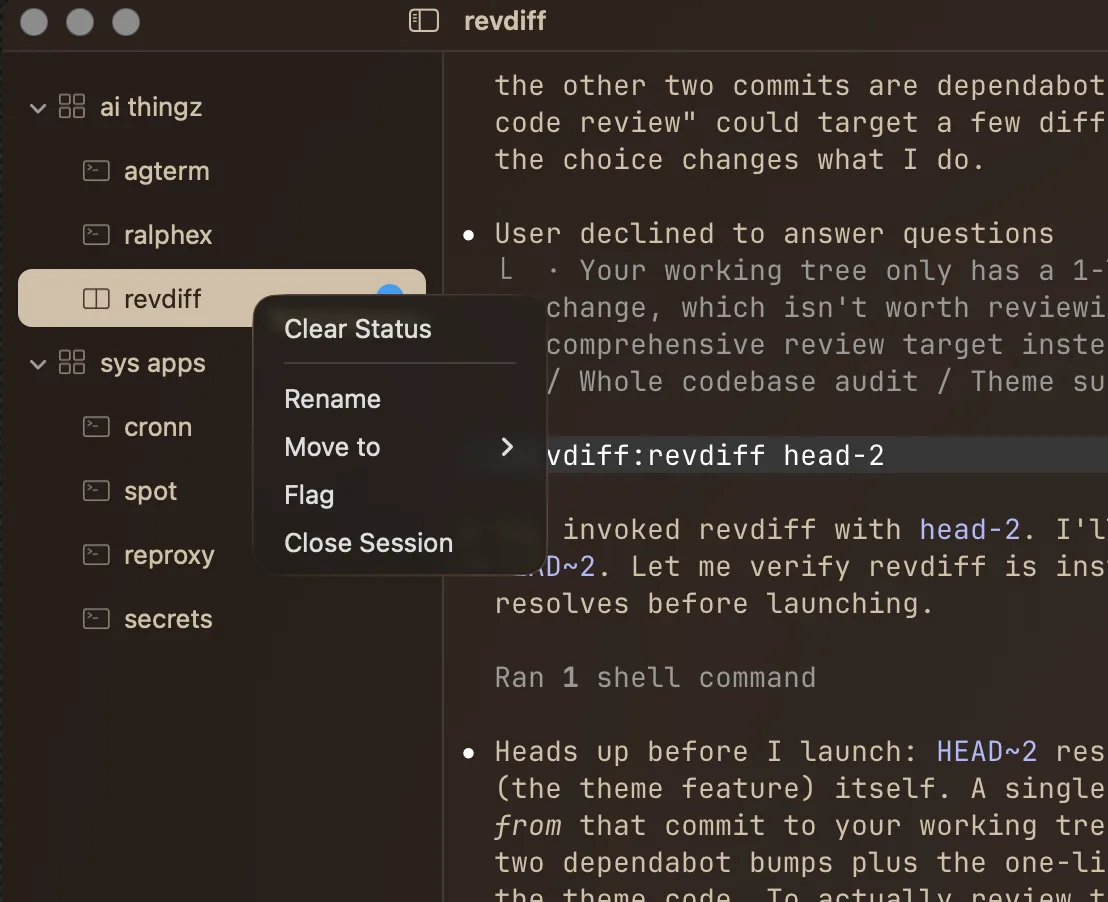
Terminals: split, scratch, quick, search, overlay
A session can split into two shells side by side with ⌘D or top and bottom with ⌘⇧D. Both panes share one sidebar row: a split is one session with two terminals, not two sessions. Using the other shortcut transposes a shown split; using its current shortcut hides it without closing the second shell. The divider follows the current axis and remembers its position; drag it to resize the panes or double-click it to return to an even split. Close Split in the action palette tears the pane down whatever it is running. Swap Panes in View or the action palette exchanges the two live terminals without restarting them. Their primary/split roles move with their physical positions, focus follows its terminal, and the divider stays put. The same operation is available as agtermctl session swap, including while a split is hidden.
A single throwaway shell for the whole app, not tied to any session or window. It appears in a floating panel at
90% of whichever screen has focus, on the Space you are currently on, and opens in the active session's
directory, sized to 90% of that screen up to a comfortable maximum. Settings ▸ Interface sets that
size as a plain share of the screen instead, which is worth doing on a large display where the
built-in maximum is the smaller of the two. Bind a system-wide chord with
global-hotkey in keymap.conf and it
summons agterm from any application. Press the key again, or click away, to dismiss it; hiding keeps its shell
alive. A panel opened by agtermctl quick show stays put instead of closing
on click-away, so a script can drive it. Not restored across launches.
An extra shell belonging to one session, for a quick aside next to your main work. It covers the session full-screen and hides again without killing it. While it is up, ⌘D and the split button hide it rather than rearrange the panes beneath. Opens in the session's directory; not restored across launches.
A search bar at the top of the focused terminal highlights matches in live scrollback with an "N of M" counter. Enter steps forward, Shift-Enter back, Esc closes.
Runs one program in a temporary terminal over a session and disappears when the program exits, leaving the session unchanged. Mostly driven from the control API to launch an interactive program (a diff viewer, a process monitor) — full-size, as a floating panel, or scoped to one split pane while the sibling pane stays live. The same slot also holds a HUD, a small passive panel carrying a message instead of a program, which leaves the session focused and typable underneath. With --html the overlay shows a local HTML page instead, such as a report or chart an agent just generated, or with --url a web page such as a running dev server, under a strip naming the file or site, then the page's title dimmed, with a close button and, with --navigation, back, forward, reload, open in browser, and Show in Finder for a file or Copy Link for a URL; ⌘W closes it like any overlay. A file page opened with --chromeless has no strip, so a dashboard fills its session or split pane like a native view. ⌘+, ⌘− and ⌘0 zoom the page, and every later page opens at that zoom. A page runs no JavaScript of its own unless opened with --js, and one that does can close its own overlay with window.close(). A web page keeps cookies and logins only while it is open, unless opened with --persistent, which uses one saved store shared by these pages; agtermctl browser clear empties it. A login that goes through another site still fails. A link the page opens in your browser asks you first. Pages can match the terminal through the theme's --agterm-* CSS variables, and drive agterm themselves through the page bridge. See the agtermctl reference.
Fills the whole window with one terminal surface — a pane, the scratch, or an overlay —
hiding the sidebar and collapsing the title bar to a slim strip with the traffic lights, the window title, and an exit button
(⌘W leaves zoom too). A view mode, not a layout change: exiting
restores split ratios, focus, and visibility exactly as they were, and everything else keeps running behind it.
Scripts can zoom any surface by id with agtermctl surface zoom, including the
pane under a running overlay, which keeps running and returns when zoom exits. Distinct
from macOS window zoom and full screen, which size the window itself.
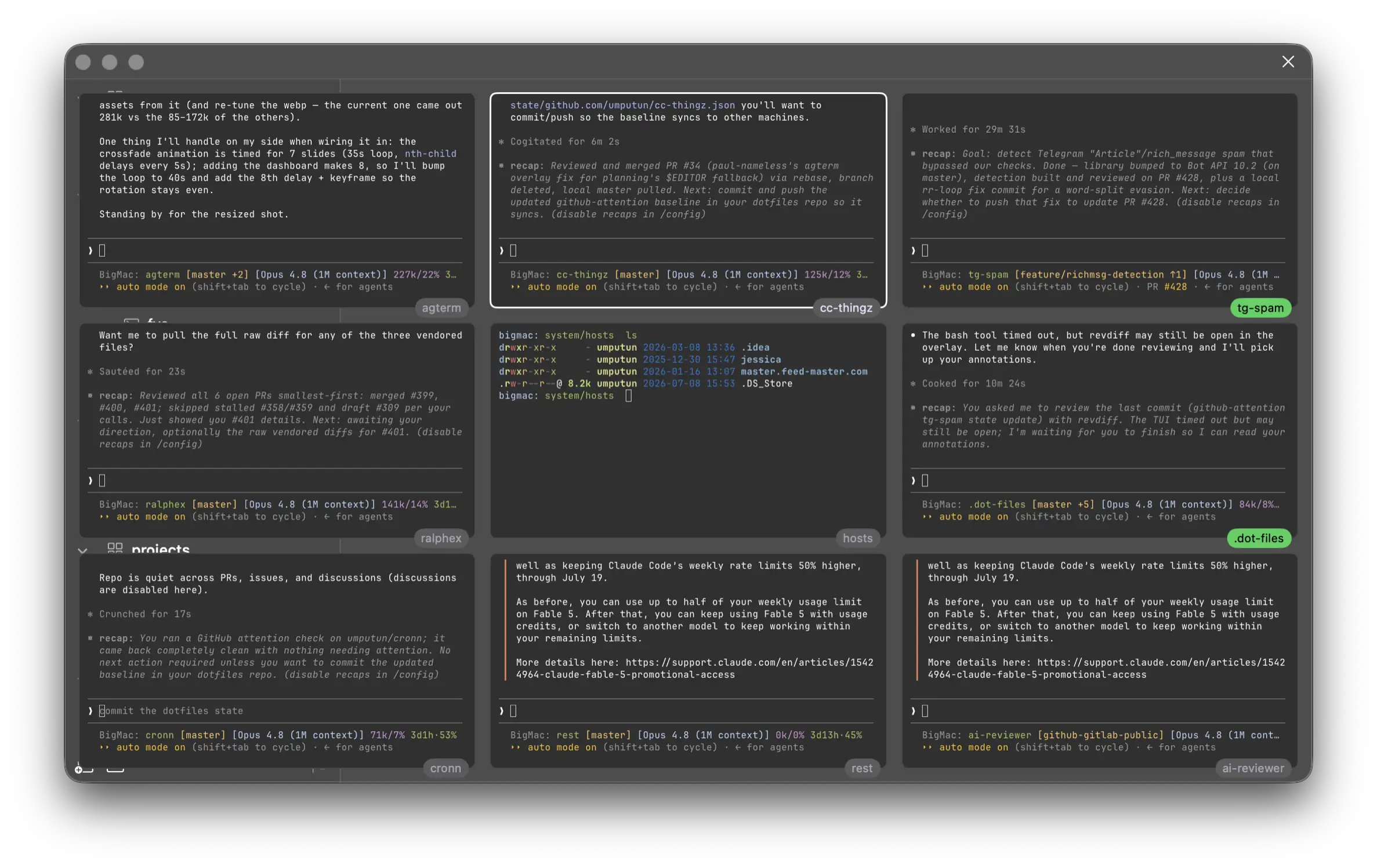
Watch several agents or builds at once: sessions' live output in one grid overlaid on the window. The cell unit is a
session+pane — a non-split session is one cell, a split session is two (its left and right panes), capped at nine
cells. Each cell's name chip also reflects the session's agent status, filling with the status color and pulsing
while it blinks, unless macOS Reduce Motion is enabled; the status color and text remain visible without the
repeating animation. A pane covered by a full overlay or its own pane overlay shows a label in its cell instead of
the terminal underneath: the page's file or origin with its title when it has one, or the program's command when
available. It is view-only — no cell's terminal
takes input; the arrow keys move a highlight, Enter (or a single mouse click on a cell) jumps into that
session and focuses that exact pane, and Esc closes. Opened over the control channel with
agtermctl dashboard <ids…>, or
agtermctl dashboard --mru to fill it from the window's most-recently-used
sessions instead of naming ids. An id may carry a :left/:right
suffix to place one pane instead of the whole session — the same form
tree --json reports in dashboardMembers — so
agtermctl dashboard "$a:left" "$b:right" keeps the panes you did not ask for
out of the nine-cell budget. The most-recently-used grid also has a built-in opener —
⌘⇧G (or Navigate ▸ Dashboard, the command palette's Dashboard, or the
title-bar grid button) opens it auto-sized. Cell fonts size absolutely
(--font-size) or scale to the grid
(--auto-size). Mutually exclusive with terminal zoom.
Navigation
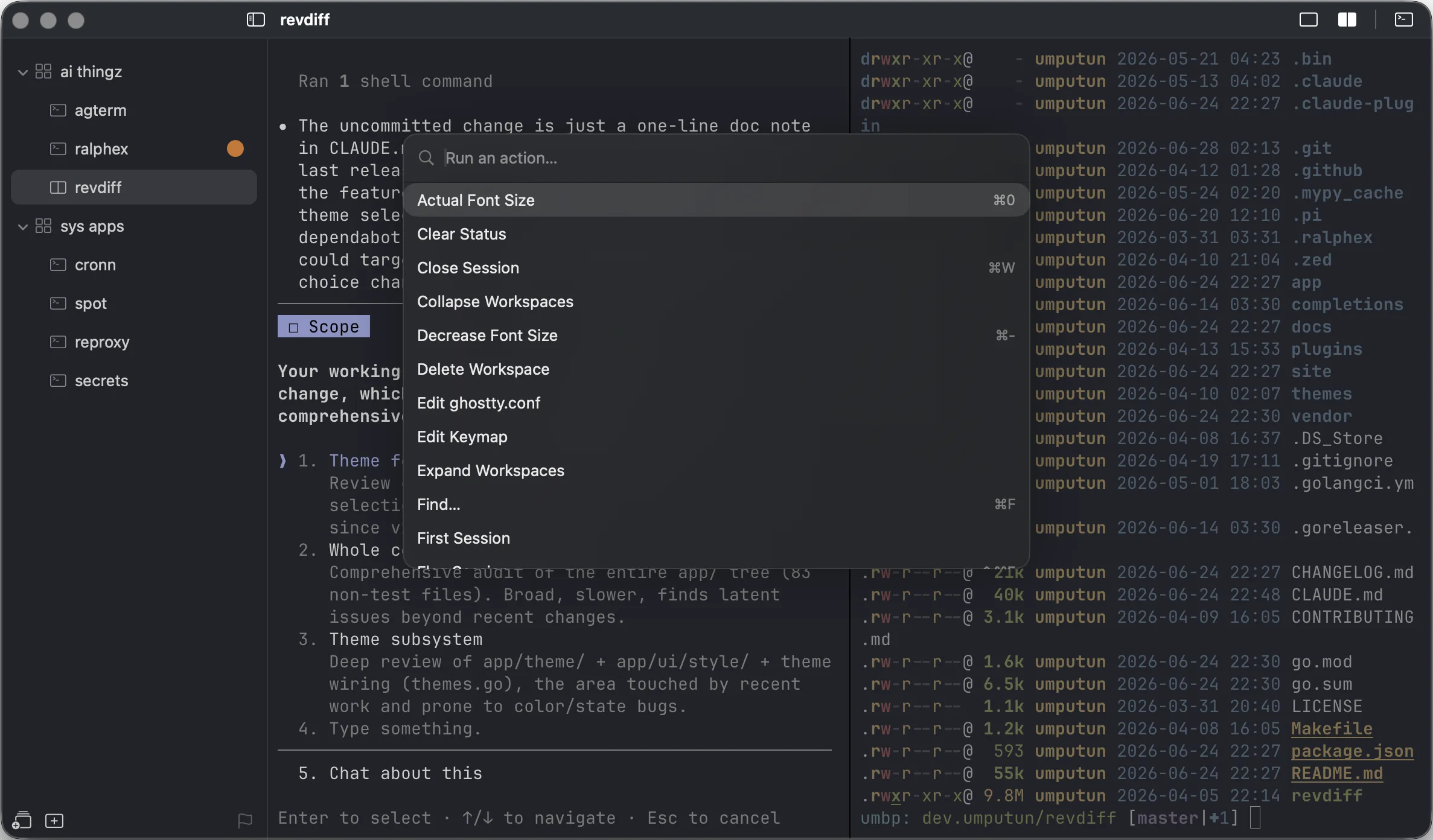
agterm is built to run from the keyboard. Every action has a shortcut and appears in the menus. Three fuzzy palettes (type to filter, arrows or Ctrl-J/Ctrl-K to move, Enter to run, Esc to dismiss) and a Ctrl-Tab MRU switcher cover the rest; a title-bar clock button opens the recent-session list with the mouse. Right-clicking agterm's Dock icon offers New Session, New Window, Quick Terminal, Dashboard, recent sessions, and sessions needing attention for the last-active window; those lists and actions stay scoped to that window even if another window comes forward while the menu is open, apart from New Window, which belongs to no existing window and stays available whatever the last-active one is doing. That same recently-used history decides where you land when you close the session you are in — agterm returns you to the session you were most recently working in, not to whichever row happens to sit next to the one that closed. The pick stays inside the closing session's workspace, and in the flagged view stays within the flagged set, while in the tree with the workspace filter applied it stays within the marked workspaces. It widens beyond the workspace only when the close leaves nothing there to return to, and beyond what is on screen only when that too is exhausted. If no recent session qualifies at all, it falls back to the adjacent row, kept inside the narrowed view while one is applied, and to the first session of another workspace when the closed session was the last one in its own.
An action the menus currently disable — Rename Session with no session open, Focus Workspace with no workspace — still appears in the action palette and still matches what you type, but is greyed out and does nothing when chosen, so the palette stays a complete index of what agterm can do rather than changing shape as state moves. Rows that would be meaningless are still omitted entirely (Delete Workspace with one workspace left, Focus Right Pane with no split).
Windows
A window is a top-level bundle of workspaces and sessions in its own on-screen macOS window, with its own sidebar and its own sessions — so "work" and "personal" can run as two separate windows at once, each with its own tree. Keep a library of windows, open one per screen, and create, rename, or delete them from the File menu (New Window ⌥⌘N) or the action palette. The set of windows open at quit reopens on the next launch, frames restored. Windows are also fully scriptable — agtermctl window can create, raise, move, resize, and minimize them, so a few lines of shell can give every window the same frame and park all but the one you are on, turning several windows into what feels like one that switches contents.
Notifications
A program in any session can raise a desktop notification (via OSC 9 / 777, or agtermctl notify). It surfaces as a macOS banner and an unseen-count badge on the sidebar row (rolled up onto a collapsed workspace); clicking the banner brings agterm forward and focuses the exact pane that raised it, and focusing a session clears its badge — or clear it headlessly with agtermctl session seen so an orchestrator driving a session over the socket can acknowledge it without pulling focus (agtermctl tree --json reports each session's unseen count). Banners and count badges toggle independently in the Notifications settings, which also sets the Dock-icon bounce for a background notification (off, once, or until you focus agterm) and an optional notification sound (a system sound attached to each delivered banner; None by default, silenced by Do Not Disturb). For a coding agent that just needs to say it is waiting, agent status is usually the better fit.
Accessibility
Voice dictation tools that probe for a focused text field — MacWhisper and similar assistive apps — engage over the terminal: the on-screen pane advertises itself to the accessibility system as an editable text area, so a hold-to-dictate widget anchors to it and dictated text lands at the prompt. Text arrives at the cursor the same way typing does, and an insert carrying a newline, a tab, or any other control character goes in as a bracketed paste, so a program that accepts bracketed paste takes it as literal text instead of running the line or completing the word. That last part is the same caveat ⌘V carries: at a raw prompt with bracketed paste off, a trailing newline still submits and a tab still triggers completion.
Two limits are worth knowing. The scrollback is deliberately not mirrored, so the exposed pane reads to a screen reader as an empty text area named "Terminal" rather than as the terminal's contents — mirroring the grid is a separate, much larger piece of work. And because the terminal appends at the cursor with nothing to read back, a dictation tool that re-sends its whole transcription on every revision (rather than only the new words) will concatenate its drafts at the prompt; tools that insert incrementally, MacWhisper among them, are unaffected.
System Dictation inserts text through macOS text input, the same path used by the keyboard and input methods.
Customization & settings
A live-preview theme picker (View ▸ Select Theme…, or the action palette) applies each of the 512 bundled themes to the open terminals as you move through the list — Enter commits and syncs it to Settings, Esc reverts to the one you started on. Settings (⌘,) has six tabs. Most changes apply live; the restore mode says when a restart is required:
Custom commands & keys
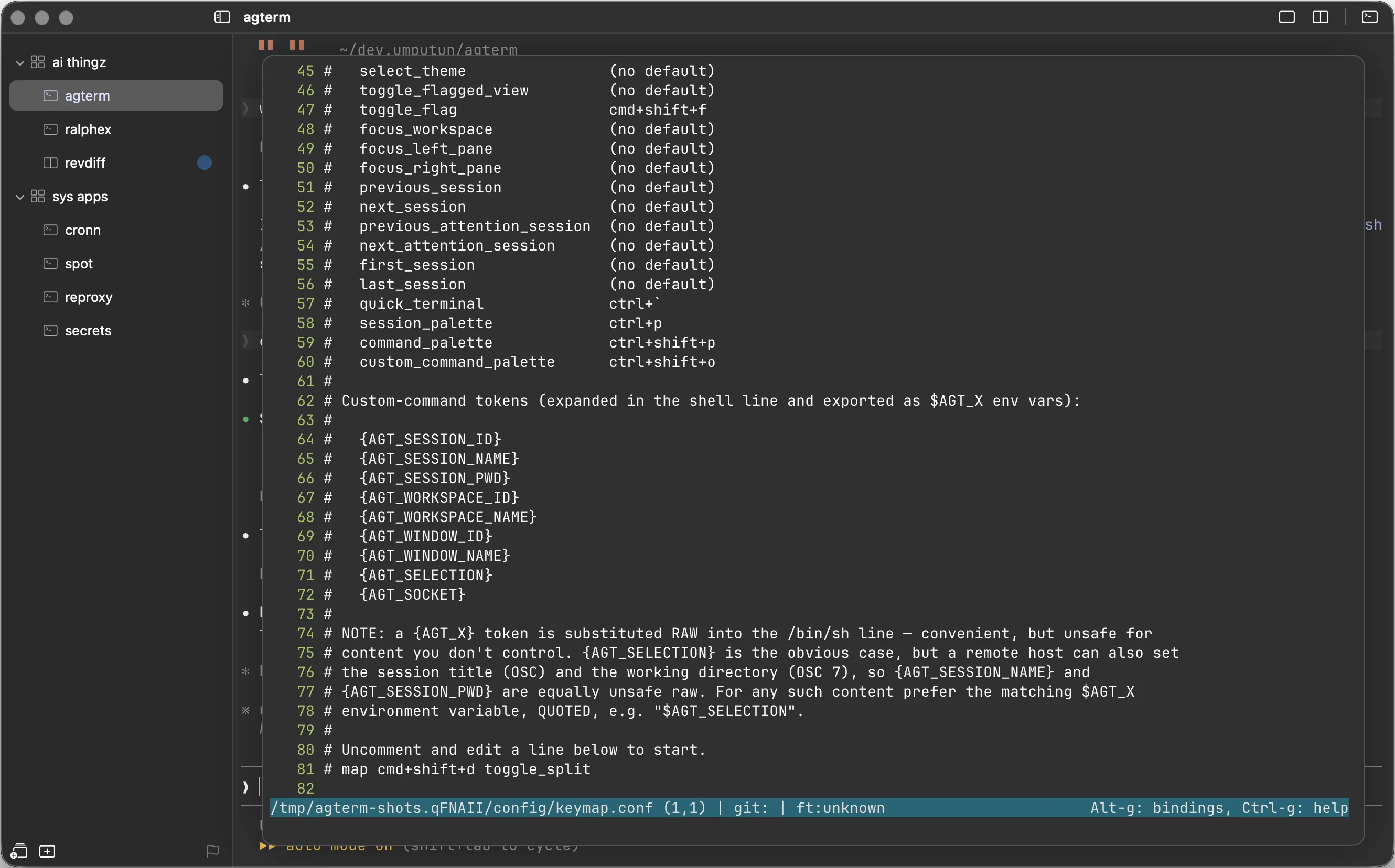
agterm reads a user-editable, kitty-flavored keymap file at ~/.config/agterm/keymap.conf. It rebinds built-in menu shortcuts and defines custom shell commands bound to keys (and listed in the action palette). The file is optional — a commented starter is written on first launch, and the directory can be changed in Settings ▸ Key Mapping. Three verbs; blank lines and # comments are ignored.
map cmd+shift+l toggle_split
map ctrl+shift+k command_palette
# or to several alternatives, joined by | with no spaces around it
map cmd+t|ctrl+a>t toggle_scratch
# define custom commands ("name" shows in the palette; chord optional)
command "Open in Zed" cmd+shift+e open -a Zed {AGT_SESSION_PWD}
command "Lazygit" ctrl+a>g agtermctl session overlay open 'zsh -lc lazygit' --socket {AGT_SOCKET}
command "Deploy" ./deploy.sh
# one system-wide chord that summons the quick terminal from any application
global-hotkey ctrl+opt+space
A chord is modifier words (ctrl, cmd,
opt,
shift) joined by
+ and a base key (a single
character or tab/
global-hotkey takes exactly one chord and binds it system-wide: it summons the quick terminal while any application is frontmost, which no other binding here can do — the rest only fire while agterm has the keyboard. It needs a modifier unless it is a function key, takes no alternatives and no leader sequence, and a second global-hotkey line replaces the first. macOS registers it by physical key position, so it keeps firing on a non-Latin layout. Because the system owns it rather than agterm, it takes no part in the collision rules below. Note which side wins: the system-wide chord takes the key even while agterm is in front, so binding one a menu item already uses means that menu shortcut stops firing. It is unset unless you add the line: agterm ships no default because registering a chord takes it from every other application on the Mac, and that is not a cost to impose on someone who may never summon the panel from outside agterm. Spending it on the chord the in-app binding already uses is allowed and is the way to get one shortcut that works everywhere — global-hotkey ctrl+` makes ⌃` summon the panel from any application, at the price of that chord no longer reaching anything else. global-hotkey f5 similarly takes F5 machine-wide, including from local map and command bindings.
One binding can offer several alternatives, joined by | inside a single token with no spaces around it — map cmd+t|ctrl+a>t toggle_scratch fires the action from either, and a command takes alternatives the same way. For a built-in, the first single-chord alternative the menu can carry becomes the menu shortcut; every other alternative, on either verb, is delivered by a key monitor and must start with a modifier or a function key. This is also how a built-in gets a leader sequence, because a menu item holds exactly one key equivalent: map ctrl+a>s toggle_split binds the sequence and leaves the action with no menu shortcut at all — its shipped ⌘D is gone rather than kept, and free for another action to claim. A typo in one alternative rejects the whole line, so a mistake can't hide behind a line that half worked; an alternative that merely breaks a rule or collides with an existing binding drops on its own and its siblings keep firing. If a line ends up binding nothing at all, the action simply keeps the shortcut it shipped with.
A leader sequence fires once and forgets its prefix. Add --repeat after the chord, on either verb, to keep the prefix live until half a second after you release the key, like tmux's bind -r: with map cmd+opt+up|ctrl+a>ctrl+h --repeat previous_session and map cmd+opt+down|ctrl+a>ctrl+l --repeat next_session, ⌃A ⌃L ⌃L ⌃H walks two sessions down and one back, the shipped ⌘⌥↑/⌘⌥↓ still working, and holding the tail repeats it. Any other key ends the window and reaches the terminal as usual; only a leader sequence repeats. A tail without a modifier, like ctrl+a>n, takes that letter when you type it within half a second of releasing the previous one.
Chords are written in Latin and keep working on a non-Latin keyboard layout. A layout that cannot type ASCII — Russian, Greek, Hebrew, Arabic, Thai — resolves every chord by the physical key position, so cmd+o still fires on the key marked O even though it types щ. A layout that can type ASCII binds what it types, so an alternative Latin layout keeps its own letter positions: on Dvorak, cmd+o follows the O you actually type.
Failure panels are opt-in per command. For example, command "Build" ctrl+a>b --error-hud ./build.sh shows failures at the center of the whole session. Add --error-position POS to choose a HUD position, or --error-pane left|right to select a pane role when the failure is reported. Positions are top-left, top-center, top-right, center-left, center, center-right, bottom-left, bottom-center, and bottom-right; top and bottom are aliases for the middle column. If the chosen pane is hidden or gone, the panel covers the whole session at the configured position. Only opted-in commands capture standard error for the panel.
Flags may appear in any order after the optional chord; for palette-only commands they follow the quoted name. Position and pane require --error-hud. A missing or invalid value, duplicate flag, unknown leading --error-* option, or empty shell body skips the command with a diagnostic. The first ordinary shell token ends option parsing, so --error-hud ./script --error-pane right passes the latter arguments to the script unchanged. Use -- to end options explicitly before a shell body starting with a reserved name. A chord is never parsed after flags.
Bindable built-in actions
new_workspace rename_workspace delete_workspace
new_session open_directory rename_session duplicate_session
close_session reopen_recent undo_close clear_status
increase_font_size decrease_font_size reset_font_size
toggle_split toggle_horizontal_split toggle_scratch toggle_search
toggle_sidebar toggle_flag toggle_flagged_view
focus_left_pane focus_right_pane focus_workspace toggle_workspace_filter
toggle_workspace_collapse
previous_session next_session first_session last_session
previous_workspace next_workspace
previous_window next_window
previous_attention_session next_attention_session
quick_terminal session_palette command_palette
custom_command_palette show_attention
select_theme toggle_fullscreen toggle_terminal_zoom
dashboard attach_remote
toggle_fullscreen is the one action with no menu item of its own. macOS adds an "Enter Full Screen" item to the View menu whenever that menu is drawn, and nothing suppresses it, so an item of agterm's own would sit beside it as a duplicate. The binding (⌃⌘F by default) is handled directly instead, which is why the menu entry advertises the system's Globe+F rather than your chord. Both work, and rebinding toggle_fullscreen changes the chord as usual — it just won't show up next to that menu item.
Command tokens
{AGT_WORKSPACE_ID} {AGT_WORKSPACE_NAME}
{AGT_WINDOW_ID} {AGT_WINDOW_NAME}
{AGT_PANE} {AGT_PANE_ID} {AGT_SELECTION} {AGT_SOCKET}
Tokens expand at fire time (also exported as $AGT_* env vars on the spawned process). A token is substituted raw into the shell line, so for content you don't control — {AGT_SELECTION}, and also {AGT_SESSION_NAME}/{AGT_SESSION_PWD} (a remote host can set these via OSC) — prefer the matching quoted env var, e.g. "$AGT_SELECTION". {AGT_PANE} names the pane's current role, left, right or scratch, and {AGT_PANE_ID} the same stable token that pane's shell holds as AGTERM_PANE_ID, so a command can keep addressing that terminal with --pane-id after a swap or a promotion has changed its role. A chord pressed inside an overlay carries the token of the pane underneath, the one the role names. It is empty for a launcher fired with no session.
Open the file with File ▸ Edit Keymap… (or the ⌃⇧P palette): it opens in a 95% overlay running $VISUAL/$EDITOR (falling back to vi) and reloads on quit. Apply edits made elsewhere with File ▸ Reload Keymap or agtermctl keymap reload. A malformed line never discards the rest — it surfaces in the diagnostics list in Settings ▸ Key Mapping while the good lines still apply.
To check what is actually bound, agtermctl keymap list prints every built-in with the binds it resolved to (the menu shortcut first, then any alternatives, joined with |), the custom commands, each diagnostic in full, and the key equivalents the menu bar is really carrying. If a binding will not fire, compare the last two: an action whose chord no menu item holds is usually a menu problem, not a keymap one. Only the menu shortcut can appear there — an alternative never does, and neither do undo_close (⌘Z) and toggle_fullscreen (⌃⌘F), which a key monitor delivers rather than a menu item.
v1 limitations
- ›A built-in's menu shortcut is single-chord only: a leader sequence binds through the key monitor instead, as an alternative, and so never shows next to its menu item.
- ›A map line can't bind a bare, modifier-less arrow — a built-in rides an always-on menu key equivalent, so a bare arrow would swallow the key in the terminal, the palettes, the dashboard grid, and every text field; any modifier makes it bindable. The literal + and > can't be a bare key token (they are the separators), but those keys are bindable as shift+= and shift+.; only increase_font_size's default ⌘+ shows as a glyph because its stored form doesn't round-trip through the file.
- ›The Ctrl-Tab MRU switcher and Ctrl-1/Ctrl-2 pane focus are not rebindable yet.
- ›Shortcut hints are not written the same way for both verbs. A built-in shows macOS glyphs (⌘⇧E), with every alternative listed space-separated and a sequence's chords joined by > as in the file (⌘T ⌃A>T), in the palette and in the toolbar and sidebar tooltips alike. A command shows the raw kitty spelling you typed instead (cmd+shift+e), alternatives still joined by |.
Event hooks
A hook is a shell line agterm runs when a control event fires: an agent status change, a notification, a session created or closed, a split or scratch pane shown or hidden, or the sidebar tree changing. Nothing has to stay running to react. Hooks live in ~/.config/agterm/hooks.conf, beside keymap.conf; a commented starter is written on first launch, and File ▸ Edit Hooks… and File ▸ Reload Hooks (or agtermctl hooks reload) edit and apply it. One verb; blank lines and # comment lines are ignored.
The redirection in the second line does not create its directory: mkdir -p ~/.local/state/agterm first. A status script that reacts to one status must exit 0 for the others, or every idle event reports a failure:
- ›Kinds. status, notify, session.created, session.closed, session.selected, tree.changed, pane.split and pane.scratch. The two pane kinds carry shown or hidden and fire only on a real change, closing a split or the scratch shell exiting included. remote.opened and remote.closed fire beside the created and closed edges of a local row created by zmx attach and carry its ssh destination as host; they describe the row in the tree, not the ssh connection, so undo re-emits remote.opened. tree.changed also covers an overlay, page or HUD opening or closing, coalesced over 100 ms per window, so it says the tree moved and not what happened. app.launched fires once per app run, after this file is loaded and the control socket accepts connections, with the restored sessions already in the tree: the place to recreate what a relaunch does not restore, such as pages kept in overlays. A hook added by a later reload does not get that launch's event. The same kinds agtermctl events prints; a status event also carries previous, the status before the write, so a script sees the transition without keeping state.
- ›Several lines per kind. Each line is its own hook with its own queue and child; they start together with no ordering between them. An identical kind and command twice is skipped with a diagnostic.
- ›What the script gets. The event as one JSON object on stdin followed by a newline and end of file, the shape agtermctl events --json prints, plus AGT_EVENT_KIND, AGT_EVENT_STATUS, AGT_EVENT_HOST, AGT_SESSION_ID, AGT_WORKSPACE_ID, AGT_WINDOW_ID and AGT_SOCKET, each set explicitly and empty when the event has no such field. The line runs detached through /bin/sh -c in the app's working directory with the same widened PATH a custom command gets, so a bare agtermctl resolves; pass --socket "$AGT_SOCKET" so it reaches the instance that fired the hook.
- ›One process per line at a time. While a hook's script runs, further events for that line queue in order, up to 256; past that the oldest is dropped and agtermctl hooks list shows the count. Nothing waits on a script: a slow or hung one holds only its own queue, and there is no timeout.
- ›Failures. A non-zero exit, a script that could not be started, or an event that could not be handed to a running script posts one banner per hook until that hook next succeeds or the file is reloaded. A script that never reads stdin is fine; only its exit status counts. hooks list keeps the last failure.
- ›Reload. A hook whose line is unchanged keeps its running script, queue and counters across a reload, comments and reordering included. A removed line accepts no more events and finishes its running script, which hooks list still shows marked retired until it exits.
- ›Loops. A hook whose command emits another event of the kind it listens to triggers itself again. The queue bounds how many processes run; it does not detect the loop. session hud open under tree.changed is one, since opening replaces the panel and emits the kind again: open only when the tree shows no HUD and use session hud update otherwise.
Page bridge
A page shown with session overlay open --html can run any agterm command: read the tree, switch sessions, rename, set a status, or hand a value back to the script that opened it. These are pages you or your agents write, trusted like a program in an overlay, which can already run every command; a --url page gets none of this. A page that pastes in outside text, an issue body say, escapes it.
Tag a button or a form with data-agterm and the socket's command name. It works with the page's JavaScript off, because agterm's own script handles the tags. data-agterm-target is the target, data-agterm-args a JSON object of fixed arguments, and a form's named inputs add to it by their field name: a number input sends a number, a checkbox true or false, anything else a string. A name that would send two values is refused. data-agterm-into names an element that shows the reply as text, or the error. A button outside a form must be type="button".
What a page leaves out comes from where it sits: a command that addresses a session, left without a target, acts on the page's own session, a command that addresses one window acts on the page's window, and session.overlay.close, reload, navigate and submit on the page itself. reload from a page re-reads the shown page. An explicit target, active or window is used as given. Global commands stay global, and window.go, like sidebar, steps from the frontmost window. Without JavaScript the rows above are what the file says when it was written; a live list, built from tree and redrawn on Refresh, needs --js, which also gives the page agterm.request(cmd, {target, args}). It returns a promise with the reply, or rejects with the error.
A page can also answer the script that opened it, like agtermctl pick. Open it with --block: the command waits, prints the outcome as JSON, and exits 0 with the submitted value, or 2 when the page closes unanswered.
Commands that stream or finish after their reply (zmx present, zmx reset and the overlay job helper) are refused from a page, and so are requests from a frame inside it. sidebar and sidebar mode act on the frontmost window, as over the socket. See the command reference for submit and result --page.
agtermctl reference
Looking for the full list? Every command, with its arguments, return values, and errors, lives on the Command reference →
agterm can be driven from a script over a local unix-domain socket through the companion CLI, agtermctl. This is for fire-and-forget scripting that manages workspaces and sessions, injects text, invokes control actions, and polls a control-event feed for status and lifecycle changes. There is no terminal-output streaming.
To open a terminal at a directory without the CLI, open -a agterm <path> — or right-click a folder in Finder and choose Open With ▸ agterm. agterm adds a session in that directory to the last-active window. This works when agterm is already running (its usual state); if it isn't, launch agterm first, then run the command. The socket equivalent, and the way to place the session precisely, is agtermctl session new --cwd <path>.
Each command targets a session or workspace by its UUID, a unique prefix of that UUID (git-style), or the keyword active (the selected session / current workspace). --target defaults to active, so the current one rarely needs naming. --target/--workspace take an id, a prefix, or active — never a name. For workspaces, active is the one a new session lands in: a workspace you just created in the foreground, otherwise the selected session's, otherwise the last one. A newly created workspace stays the target until the selection changes — to a different session or to none — or until you delete it or hide it behind the workspace filter. workspace select moves the target to the workspace you name, an empty one included. So New Session (and session new) right after creating one lands in the new workspace rather than the one you came from. Mutating commands normally print the affected id; batch session close and session move accept repeated --target options and print the number of sessions actually changed. Add --json for the raw response, or --socket PATH to override the socket. The exit code is zero on success, non-zero on error.
Native picker
agtermctl pick reads nonblank lines or a JSON array of {id,label,subtitle?} objects from stdin and opens agterm's fuzzy picker. It blocks by default and prints the picked, custom, or cancelled result as bare JSON. Add --no-block to get the picker id immediately, then use pick result or pick cancel. The target tree's top-level pickPending field carries that id while the picker waits.
Typing matches item labels only; a subtitle is shown but never searched, so consequence text on one row cannot filter out its safer neighbour. An empty query lists the items in the order they were supplied, so without --select the caller's first item is the one Return runs on open. --query TEXT prefills the field and filters immediately, which ranks by match score and therefore does not preserve that order. --select ID opens with that item highlighted and scrolled into view, so a picker listing windows or sessions can start on the current one and Return on an untouched list stays put; a --query that filters the item out leaves the first visible row highlighted. With --allow-custom the item list may be empty, which turns the picker into a plain text prompt: the custom row appears as soon as the query is nonblank, whether prefilled by --query or typed. An itemless call still reads stdin, so redirect it (< /dev/null) or it blocks.
agtermctl pick --allow-custom --query "$name" --prompt "Rename to" < /dev/null
id=$(printf '%s\n' alpha beta | agtermctl pick --no-block | jq -r '.id')
agtermctl pick result "$id"
agtermctl pick cancel "$id"
agtermctl tree --json | jq -r '.result.tree.pickPending // empty'
Question dialogs
agtermctl ask "Continue?" --button yes=Yes --button no=No --default no opens a question in the selected session and waits for a bare JSON answer. Inspect its id before acting: Yes and No both exit 0. The default terminal style uses the session's theme and allows one pending question per session. Add --pane right to cover only that pane; the left pane and the rest of the window stay usable. An explicit --target can name an unselected session, where the question waits hidden until the session is selected.
--style gui uses native buttons and a window modal shared with pick. Terminal questions can coexist with it. Tab and arrows move the highlight; Return answers the interactive question. Esc and Command-W dismiss it with escaped and exit 3; cancellation exits 2. See the ask reference for placement, sizing, input priority, result polling, and cancellation rules.
Sessions & workspaces
agtermctl tree
# create a workspace, capture its id, open a session in it
ws=$(agtermctl workspace new work)
agtermctl session new --workspace "$ws" --cwd ~/src/agterm
# run a command as the session's process (argv-style; wrap in sh -c for shell syntax)
agtermctl session new --command "ssh user@host"
agtermctl session new --command "zsh -lc 'make test'" --wait # hold open after the command exits (press any key to close); needs --command
agtermctl session new --name myhost --workspace-name servers --create-workspace
# step / reorder / relocate
agtermctl session go --to next # next|prev|first|last
agtermctl session move --to up # reorder: up|down|top|bottom
agtermctl session move "$ws" # relocate to a workspace
agtermctl session new --after active # create right after the current session (--before to precede)
agtermctl session new --cwd ~/src/agterm --no-select # create in the background without switching to it
agtermctl session duplicate --target 9f3c # a fresh shell in that session's workspace and cwd, right after it
agtermctl session move --after 9f3c # place after an anchor (its workspace is used; relocates cross-workspace)
agtermctl session move "$ws" --target 9f3c --target abcd # move a batch as one ordered block
agtermctl session close --target 9f3c --target abcd # one grace-period undo for the batch
agtermctl workspace go --to next # step to the next workspace and select its first session
agtermctl workspace move --to top # reorder a workspace
agtermctl workspace new work --collapsed # create a workspace closed in the sidebar (fill with session new --no-select)
agtermctl workspace collapse --target 9f3c # collapse one workspace; workspace expand re-opens it
agtermctl workspace focus on # mark this workspace alone and apply the filter (on|off|toggle|add)
agtermctl workspace focus add --target a1b2 # mark another one without narrowing the tree yet
agtermctl workspace filter on # apply the marked set; filter off suspends it without losing the set
agtermctl session reveal --target 9f3c # reveal the focused pane's cwd in Finder
Typing, selection & text
agtermctl session type --target 9f3c $'make test\n'
echo 'make test' | agtermctl session type --stdin
# route to a pane: left (default) | right (split) | scratch (even when hidden)
agtermctl session type --pane right $'ls\n'
# type into a background session without changing focus
agtermctl session type --target "$id" $'echo hi\n'
# read a pane's selection (does not touch the clipboard) or its output
sel=$(agtermctl session copy --target 9f3c)
agtermctl session text --pane scratch --target 9f3c
# paste the system clipboard (⌘V), or select the whole buffer (⌘A) then copy it
agtermctl session paste --target 9f3c
agtermctl session select-all --target 9f3c
Splits, scratch, quick & search
agtermctl session split close # vertical=left/right; horizontal=top/bottom
agtermctl session resize --split-ratio 0.7 # primary fraction; grow role/position aliases also work
agtermctl session scratch toggle # on|off|toggle
agtermctl session flag on # on|off|toggle|clear
agtermctl session seen --target 9f3c # clear the unseen badge, focus-free
agtermctl sidebar mode flagged # tree|flagged|toggle
agtermctl quick toggle # show|hide|toggle
agtermctl quick type 'ls -la' # or --stdin; quick text reads it back
agtermctl surface zoom # fill the window with the active surface (show|hide|toggle; --target surface:<id>:right)
agtermctl dashboard "$a" "$b" "$c" --auto-size # view-only grid; a split session is two cells, capped at 9 panes (--mru; --font-size N | --auto-size; --close)
agtermctl font inc # main pane font size
agtermctl font dec --pane right # just the split pane (left|right|scratch)
# open the search bar, print the "N of M" counter
agtermctl session search "error"
agtermctl session search --next # --prev | --close
Overlays
agtermctl session overlay open "revdiff HEAD~3" --target 9f3c
# floating framed panel at 70% of the pane, optionally tinted
agtermctl session overlay open "htop" --size-percent 70
agtermctl session overlay open "revdiff HEAD~3" --size-percent 80 --background-color "#2a1a3a"
# switch the user to the target as the overlay opens
agtermctl session overlay open "revdiff HEAD~3" --size-percent 80 --target 9f3c --follow
# keep it open after exit, or block until it exits and inherit its status
agtermctl session overlay open "make test" --wait
agtermctl session overlay open "make test" --block
# resize an open overlay in place — floating percent, or back to full (the program keeps running)
agtermctl session overlay resize --size-percent 60 --target 9f3c
agtermctl session overlay resize --full --target 9f3c
agtermctl session overlay close --target 9f3c
agtermctl session overlay result # last overlay's exit status
# cover only one split pane, leaving the sibling pane live
agtermctl session overlay open "revdiff HEAD~3" --target 9f3c --pane right
# read what is INSIDE the overlay — the selection the user made, or its drawn screen
agtermctl session overlay copy --target 9f3c --pane right
agtermctl session overlay text --target 9f3c --pane right
--wait keeps a "press any key to close" prompt so you can read the final output; --block reports only the exit status (the overlay never captures stdout — a TUI writes its own result file). By default an overlay opens on its target without switching the active session (full and --size-percent floating alike); --follow switches the user to the target. session overlay resize changes an open overlay in place — --size-percent makes it floating, --full switches it back — without restarting the program. A (overlay) tag in agtermctl tree marks a session whose overlay is open.
session overlay copy returns the selection made inside the overlay and session overlay text its terminal buffer. These exist because session copy and session text address the pane the overlay covers: text you highlight in an overlay reads there as no selection, and session text --pane right hands back the shell underneath. Reach for them when the read is not chord-driven: an agent polling from outside, or a script wanting the selection some time after the fact. A chord already receives the selection of the surface it fired in, the overlay included, as $AGT_SELECTION, so a custom command should use that rather than a later socket read. The buffer one returns a TUI's screen as drawn, wrapped where it wrapped — for a program's real output, still read the file it writes.
--pane left|right scopes the overlay to one split pane instead of the whole session: it covers exactly that pane and leaves the sibling pane visible and interactive, so an agent working in the split can show a diff or a TUI over its own pane without blanking the one you are reading. The two panes are independent and may both hold an overlay at once, each with its own background color. A pane overlay is always full-pane — there is no floating variant, so --pane cannot combine with --size-percent and session overlay resize takes no --pane — and everything else matches the session-wide overlay. A non-split session accepts --pane left. A newly spawned shell reports AGTERM_PANE=left, but that value is its spawn role and is not rewritten after a pane promotion or swap. A long-running shell must not assume --pane "$AGTERM_PANE" still names its current slot. A pane that is not on screen is refused with pane not visible; hiding the split after opening is fine, the program keeps running and reappears when the split comes back. close, result, copy and text take the same --pane, ⌘W dismisses the focused pane's overlay before it would close the session (one on the other pane is not in front of you, so ⌘W keeps its ordinary meaning), and agtermctl tree --json reports the covered panes as paneOverlays.
Message panel (HUD)
agtermctl session hud "gathering options…" --spinner --detail "scanning branches" --target "$AGTERM_SESSION_ID"
# repaint in place, no re-spawn and no blink
agtermctl session hud update "ready" --detail "pick a branch" --target "$AGTERM_SESSION_ID"
# let it take itself down after ten seconds; omit the flag and it stays until you close it
agtermctl session hud "deploy finished" --hide-after 10 --target "$AGTERM_SESSION_ID"
# anchor it and set its width by hand instead of measuring the message
agtermctl session hud "deploying" --position top-right --size-percent 30
# keep the HUD inside the calling pane, even after its role changes
agtermctl session hud "working" --pane "$AGTERM_PANE" --pane-id "$AGTERM_PANE_ID" --target "$AGTERM_SESSION_ID"
# color both halves of the panel
agtermctl session hud "deploying" --text-color "#7ec07e" --background-color "#202020"
# a caption: a strip flush across the top, as tall as its text, with links that open on ⌘-click
agtermctl session hud "**deploy api** [PR](https://example.com/pr)" --markdown --sticky --no-frame --position top --size-percent 100
agtermctl session hud close --target "$AGTERM_SESSION_ID"
A HUD carries a message rather than a program, and it is passive: the session keeps first responder and stays typable under the panel, the terminal behind it is neither dimmed nor click-blocked, and nothing waits for an answer. It is for the seconds a script or an agent needs before it can show anything, so the session says what is happening rather than sitting silent. open is the default subcommand, so session hud "…" posts one. --position anchors it to any of the nine positions session background takes — top-left, top-center, top-right, center-left, center, center-right, bottom-left, bottom-center, bottom-right — defaulting to center, with every anchor off center holding a margin off that pane edge on its own; a corner is what keeps a panel out of the text you are reading. --sticky drops that margin and lets the width reach 100%, and --no-frame drops the border and the blank row above and below the text; together they make the caption above. It is still the one transient panel, so a script posts it again after a restart. A frameless panel is its rendered rows plus 12 points of padding tall, one row more than its text with the default font and padding, so a program meant to sit under a caption leaves that room. The bare top and bottom this took before are still accepted for the middle column. The panel comes from the message on both axes — width from the longest line, height from the number of them, so a title and a subtitle give a wide, short panel rather than a square one. --pane uses one pane as the bounds for sizing, anchors, and margins. --pane-id "$AGTERM_PANE_ID" follows the same shell through pane swaps and promotion, with --pane "$AGTERM_PANE" as the fallback. Open refuses a pane that is not rendered. Hiding that pane hides the panel without stopping it; showing the pane restores it, and closing the pane closes its HUD. --size-percent overrides the width only, bounded to at most 80% of the pane, or 100% with --sticky off center, so a message never covers the session it is about. --text-color sets the text's own color and --background-color the panel's backing, so the two halves are independent. An update replaces the whole message, so --detail, --spinner and --text-color, --sticky, --no-frame, --pane, and --pane-id have to be repeated to survive it. The spinner takes a style — --spinner-style bar|braille|circle|blocks|dot|none, which turns it on by itself, with dot blinking rather than animating — and an update may switch style in place; --background-color and --font-size are the exceptions, read once when the panel is created and kept — in the panel and in the read-back — across every update, which is why an update does not take them at all.
--markdown turns the panel into a small board: headings, bold, lists, code blocks, quotes and tables render, and the message may run to 4096 characters. Standard markdown rules apply, so a single newline inside a paragraph is a space; use list items, or end a line with two spaces, to keep rows apart. A board taller than the panel is clipped, its excess rows giving way to a dim … N more. The file is read once per command, so push each change with an update. A link shows its label underlined, and a ⌘-click opens it as it would in the terminal, so a board can carry the pull request or the ticket it is about. That is the one click the panel takes; any other still reaches the terminal behind it. --file status.md reads the message from a file, and --font-size PT gives the panel its own font size, set when it opens. A controller agent can keep one in a corner of its session with session hud --file status.md --markdown --font-size 11 --position top-right and refresh it with session hud update --file status.md --markdown --position top-right.
It shares the overlay slot, so a second hud replaces the first, session overlay open replaces a HUD, and ⌘W or session overlay close takes one down; a HUD over a running program is refused instead, because a message is replaceable and a program is not. session overlay result over a HUD errors, and session overlay resize accepts a percent but refuses --full, which would cover the session the message is about. agtermctl tree --json reports the panel as the session node's hud object, with a pane-scoped HUD's current role in hud.pane and overlay reading false beside it; there is no event, so a script that needs the state polls the tree.
Windows
w=$(agtermctl window new work)
agtermctl window new proj-b --minimized # create one, parked in the Dock
agtermctl window select "$w" # raise it (opening if closed)
agtermctl window go --to next # raise the next open window, wrapping (next|prev)
agtermctl window rename "$w" personal
agtermctl window minimize "$w" on # park it in the Dock (off restores)
agtermctl window close "$w" # close its window (bundle kept)
agtermctl window delete "$w" # delete (last window can't be deleted)
# --window targets a specific window's tree on session/workspace/tree/font
agtermctl tree --window "$w"
agtermctl session new --window "$w" --cwd ~/src/agterm
Keymap, config & notify
agtermctl config reload # re-read the ghostty config, returns the diagnostic count
agtermctl notify --title Build --body "tests passed"
Remote sessions
A session running on another Mac that is also running agterm can be opened here, in the sidebar, marked remote. agtermctl zmx tree [HOST] lists what that machine has to offer across every open window, and agtermctl zmx attach HOST ID [--window W] opens one of them, split included. Both need the far side in Live sessions mode, since that is what puts a daemon behind each pane, and both run ssh non-interactively — key-based auth has to work for the host already, because a password or host-key prompt is a failure rather than a question. The far side also needs agtermctl installed by the cask or the Help action: a machine merely running agterm has no CLI an ssh command can find. To check the connection before you need it, run ssh -o BatchMode=yes studio.local true — that is the same non-interactive form agterm uses, so if it exits without printing anything, agterm can reach the host; if it asks for a password or a host key, agterm fails the same way. One difference to know about: agterm runs ssh from the app, which inherits the launch environment rather than your shell's, so an agent exported in .zshrc passes this check and still fails here. Put IdentityAgent and key settings in ~/.ssh/config, which both paths read. Use --window to choose an open local window without bringing it forward; otherwise the session opens in the frontmost window after discovery.
The pane reports the far side's working directory, and the local launches that would inherit it — a custom command, the scratch terminal, an overlay opened without --cwd, the quick terminal, a local split (the first on a session that arrived without one, or one opened after the attach-time split is closed), Duplicate Session, and New Session when set to open in the current session's directory — start in that path when it exists here as a directory, else in your home. A custom command still sees the reported path in $AGT_SESSION_PWD and the destination in $AGT_SESSION_HOST, empty for a local session, so it can reach the remote directory itself. When another client leads at a different terminal size, local cursor and screen-text reads can disagree with the application's layout; automation relying on those reads is unsupported in that state.
agtermctl zmx attach studio.local 7c1e… # the id from that listing, not the name
# pipe the listing into the picker and attach what was chosen
s=$(agtermctl zmx tree studio.local --json | jq '[.result.remote.sessions[] | {id, label: .name, subtitle: (.windowName + "/" + .workspaceName + " " + .cwd)}]' |
agtermctl pick --prompt "Attach which session?" | jq -r '.id // empty')
[ -n "$s" ] && agtermctl zmx attach studio.local "$s"
Only a session whose every pane still has a live daemon is listed, and the remote is resolved again at attach time, so a session that has gone in between fails instead of handing back a fresh shell wearing its name. Closing the row here ends only this side's connection — the far-side processes keep running, and nothing agterm does from this end can kill them. A remote session is never written to disk, so it does not come back after a relaunch. Its tree node carries remoteHost. The title bar shows a cloud and the remote host, which you can hide with the Remote host toggle in Settings ▸ Interface. The Ctrl-Tab switcher and the title-bar recent and attention lists mark the row with the same cloud and name the host.
File ▸ Attach Remote… does the same from the menu. It offers the Macs named in remotes.conf in the config directory, one per line as destination [label]: the destination is what ssh takes, and the rest of the line is an optional name for the picker. Lines starting with # are comments. It is the attach_remote action, on ⌘⇧R unless you map another chord. With more than one Mac listed it asks which in the picker, then shows that Mac's sessions and attaches the one you choose in the current window. A panel over the session reports the connection while it is being made, and a failure stays up for five seconds. The item is greyed out while the file is missing or lists nothing. A line that cannot be used, or a file that cannot be read, is reported by a notification.
A program in an attached session runs on the other Mac and talks to that Mac's agterm, so every attach also opens a presentation stream back to it: this Mac mirrors the layout of panes already attached, the session's status, its session context, its notify notifications and its HUD. A context set on this Mac's row wins over the mirrored one, and clearing it here shows the other Mac's again. A far side running an agterm from before context mirroring still connects and mirrors the rest, with no context. It needs nothing beyond agtermctl on the far side's ssh PATH. The session's tree node reports it as presentation, where connected means mirroring works and says nothing about the panes' own ssh connections; a far side too old for the stream reads unsupported and the attach still works.
Two existing remote panes follow the origin's split direction, hide/show and swaps. Local panes, divider ratio and keyboard focus stay local. This never opens a pane: a split opened on the origin after attach requires closing and attaching the row again, and a replica closed here stays closed. Older origins leave the layout alone. Confirmed origin removal closes its replica without requiring a keypress, even if it already shows a disconnect prompt. The last replica waits for its ssh exit and may then close the row; automatic primary removal is skipped while a local split is pending. An ordinary connection failure still shows the disconnect line, reconnecting on its own when ssh itself failed and otherwise holding for a keypress.
When the stream drops, the mirrored status, context and HUD are cleared here and come back on reconnect, which is retried after 1, 2, 4, 8, 16 then 30 seconds, slows to every 5 minutes after eight failures in a row, and never stops. A notification raised while it is down is never shown here. A terminal notification (OSC 9/777) is not mirrored, because it already arrives in the pane's bytes and is raised here once. A timed HUD closes on this Mac's own countdown of the time the other side had left, so the two panels can close a moment apart, and a HUD or overlay opened by a program on this Mac is never replaced by a mirrored one.
One Mac attached to a session presents it, the first to ask while nobody does, and its row's presentation reads mode: presenter. A question (ask) or a program overlay a program then opens in that session is handed to the presenting Mac, where you are, only while the other Mac follows another Mac's lead in its pane, or in every pane for one covering the whole session. Otherwise the request stays on the other Mac, and one already open stays where it is when the lead changes. The answer or the program's exit status still reaches the program on the other side. A handed-over overlay's program runs once, on the other Mac, inside an ssh terminal this Mac opens for it. If this Mac refuses a question, it goes back to the other side; if it cannot show an overlay, the overlay fails rather than opening over there. Closing such an overlay from a script asks for it to end, and its result says how it did.
While the stream is down the row says so and names the host. A question goes back to the other side, a finished overlay held open with --wait closes, and a running overlay keeps running until its program ends. Retrying is automatic, and at once when the Mac wakes or the network changes; close and reattach the session to retry by hand.
A program on the other Mac that copies with pbcopy fills that Mac's clipboard, not yours. agtermctl clipboard set sends the text through the pane instead, asking every terminal attached to that pane to set its clipboard, this Mac's included; each applies its own clipboard-write setting. It needs no terminal, which is what lets an agent's shell tool use it.
Each pane has one Mac that leads it, and the program inside sees that Mac's window size. Attaching takes the lead in every pane at once, so the session arrives at your size with nothing to press, and the same panes on the Mac the session runs on are covered with a note that it is in use elsewhere. Pressing a key on a cover, or agtermctl session lead, takes the lead back and covers the pane on the other side. Scripts typing into a covered pane on the Mac the session runs on still work, and so do their reads of its screen: both go through the session itself, not the covered view. When you close the session the panes on the far side uncover by themselves. Both Macs need an agterm with this behaviour; against an older one the attach still arrives at the other Mac's size until you type. When a connection drops, the pane keeps its last screen. If ssh itself failed (exit 255, which is also what a refused login gives), a bar under it names the host and says it is reconnecting, under whatever ssh printed, and agterm attaches the pane again once the host answers, retried on the schedule the stream uses; any key, waking the Mac or a network change retries at once and starts that schedule over, and ⌘W still closes the session. While the host keeps refusing, a line along the pane's bottom edge shows what ssh said on the last try, such as a changed host key or a rejected login. The last screen is replaced when the host answers, before the new connection is up, so if the link drops again right away the pane waits on an empty terminal with only the bar. The pane comes back without taking the lead, so if the other Mac leads it by then, it arrives covered, and also while the other Mac still counts this Mac's dropped connection as the leader, which clears by itself once that connection times out. Any other exit prints one line naming the host, the session, the pane and the exit status, and holds on Ghostty's press-any-key prompt. When your ssh config sets no ServerAliveInterval for the connection, or sets it to 0, agterm adds ssh keepalive options (ServerAliveInterval 5, ServerAliveCountMax 2), so a dead connection is noticed within about fifteen seconds; a large value is the way to opt out. When the pane's ssh joins an existing ControlMaster connection the options do nothing, and that master's own settings decide.
The cookbook collects complete agtermctl workflows, each in its own directory with a README and, where it needs one, its scripts: switching the sidebar to a single project, closing a project's workspaces and bringing them back later, picking a path with fzf and typing it into the shell, and giving each tab its own Claude Code or Codex conversation across a restart. They are written to be copied into your own setup and edited, not only read; cookbook/CONTRIBUTING.md has the rules for adding one.
Recipes come from other people as well as the maintainer. Every one is reviewed before it is accepted, but they are shell scripts you run on your own machine against your own sessions, and several close sessions or delete workspaces, so read a recipe before you run it.
Ghostty config
agterm builds its terminal config from four sources, each overriding the one before it:
(lowest) (global, OFF by default) (agterm-scoped) (UI wins)
agterm is self-contained: by default it does not read your global ~/.config/ghostty/config, so a config written for the standalone Ghostty.app never silently changes agterm. Turn on Settings ▸ General ▸ Use my global Ghostty config to fold it in.
<config dir>/ghostty.conf (default ~/.config/agterm/ghostty.conf) is the place to customize agterm. It sits next to keymap.conf and gets the same treatment: a fully commented starter file is written on first launch, so a fresh one changes nothing. It is always loaded, and is scoped to agterm so the standalone Ghostty.app never reads it. Put any ghostty config key there. Values agterm emits from Settings use font-family, font-size, theme, background-opacity, background-blur, mouse-scroll-multiplier, and right-click-action. They load last, so they win over matching values in this file. The last two are emitted even when their controls use the defaults. A common use: macos-option-as-alt = true. The full key reference is at ghostty.org/docs/config. Two values in it do not apply here: ssh-env and ssh-terminfo for shell-integration-features. Ghostty implements both by replacing your ssh with a wrapper that calls the ghostty command-line tool absent from agterm's bundle, so the wrapper would fail on every connection. agterm forces those two back off and keeps the rest of your flags, leaving ssh the real ssh; to put the terminfo entry on a remote host once, run agtermctl terminfo install <host>. The variables agterm injects into the shell, TERM_PROGRAM, TERM_PROGRAM_VERSION and the AGTERM_* set, are applied after this file, so an env line naming one of them has no effect. Other env keys reach every new shell.
A keybind here follows ghostty's own rules, which differ from keymap.conf: a bare letter or digit binds the character the active layout produces, so keybind = super+opt+ctrl+g=text:hello stops firing on a non-Latin layout, where that key types п. Prefix the key with key_ to bind the physical position instead — keybind = super+opt+ctrl+key_g=text:hello works on any layout. agterm's bundled defaults already use it for ⌘C, ⌘V, and ⌘A.
Programs can read and write the macOS clipboard over OSC 52. agterm prompts before a program reads your clipboard (a read hands its contents back to the program); a normal ⌘V paste is never prompted. Clipboard writes go through by default, matching other terminals so a remote tmux/vim yank still reaches your clipboard. To gate writes, set clipboard-write = ask or deny. Each prompt offers Don't ask again this session.
A ⌘-click on a web link opens it in your browser. With Settings ▸ General ▸ Open links in set to Session overlay, or agtermctl browser links overlay, an http or https link opens in a web overlay over its session instead: JavaScript on, navigation buttons, and the saved browser store, so a login made there lasts. That store is agterm's own; nothing is taken from your browser. The page may go on to other sites, and its strip always names the site shown. The link still opens in the browser when it sits in a HUD, when a HUD is up on the session, when the terminal is zoomed, when the session already has an overlay, or in the quick terminal. So does a plain http link to anything but a local address (localhost, a .local name, an IP address), which the overlay could not load.
A ⌘-click on a file:// link — the kind ls --hyperlink, eza, and many compilers emit — reveals the file in Finder instead of opening it. A terminal renders untrusted program output, so a link could point at a .app or .command; revealing selects the file without running it, which is the security boundary — actually opening it stays a separate, explicit action. Web (http/https) and mailto links still open as before. A file:// link that names another host is ignored rather than revealed, so a stray link can't trigger a Finder network mount.
Link detection follows the program in the pane. While one has mouse reporting on — tmux with mouse on, or stock vim — ⌘-hover stops underlining and ⌘-click opens nothing, because links are detected only while reporting is off. Same in Ghostty.app, and per-program rather than per-kind of app. Hold shift as well (⌘⇧-hover, ⌘⇧-click) to reach the link anyway, unless the program claimed shift for itself. In ghostty.conf, mouse-shift-capture = never makes shift always win, and mouse-reporting = false turns reporting off for every program.
Open the file with File ▸ Edit ghostty.conf… (a 95% editor overlay, same as Edit Keymap). Apply edits made elsewhere with File ▸ Reload Config or agtermctl config reload. A malformed line is skipped and the good ones still apply; the returned diagnostic count covers every config source.
Agent status
A coding agent running in a session can flag its status on that session's sidebar row, so you can tell at a glance which of many concurrent agents needs you. The glyph shows just left of the notification badge on every non-idle session; a one-time completed flash auto-clears once you visit the session.
Every state draws a filled circle by default, so the tint is what tells them apart. The shape is configurable per state under Settings ▸ Agent Status ▸ Colors and Shapes, where each state carries its own color well and shape picker on one row. The six shapes are circle (the default), square, triangle, diamond, capsule, and star, each drawn in that state's current color. Choosing a distinct shape per state adds a second signal alongside the tint, so the states stay apart at a peripheral glance and without depending on hue.
An agent sets it over the control channel:
agtermctl session status active --target "$AGTERM_SESSION_ID"
agtermctl session status blocked --sound default --target "$AGTERM_SESSION_ID"
agtermctl session status completed --auto-reset --target "$AGTERM_SESSION_ID"
agtermctl session status blocked --color '#ff0000' --target "$AGTERM_SESSION_ID"
agtermctl session status blocked --shape triangle --target "$AGTERM_SESSION_ID"
agtermctl session status blocked --pane right --target "$AGTERM_SESSION_ID"
agtermctl session status idle --target "$AGTERM_SESSION_ID" # clear it
--auto-reset clears the indicator the moment you visit the session; --blink requests an attention pulse; macOS Reduce Motion suppresses the repeating sidebar and dashboard animation while keeping the status visible, and the pulse resumes when Reduce Motion is disabled; --sound plays a one-shot sound (default, or a system sound name like Basso/Ping/Tink). To make every blocked prompt sound without touching the hooks, set Settings ▸ Agent Status ▸ Blocked sound. --color (#rrggbb) overrides the glyph tint for that one call — it rides the status, so the next status set without it reverts to the configured color. --shape (circle, square, triangle, diamond, capsule, or star) overrides the silhouette the same way, reverting to the configured shape on the next status set without it. Both read back on tree as the session's statusColor and statusShape, each reporting the per-call override only. Every accepted status set, including idle, also stamps the session's statusChangedAt (epoch seconds, omitted before any set), including a call that re-pushes the same status — so a script polling tree can tell how long ago the status was last written without tracking that itself. Automatic and manual clears also count. It is ephemeral and does not survive a restart.
--pane (left|right|scratch, defaulting to the main pane) records which pane set the status: a block set from a background pane survives typing in another pane, and when the status needs attention (blocked or completed), any GUI selection of the session (auto-follow, attention nav ⌃⌥↑/↓, plain session nav, the command palettes, a Dock-menu session, and a sidebar click) reveals and focuses that pane — the split, or a hidden scratch — instead of the main pane, so an agent that blocks or completes in a split or scratch tags its own pane to be found. An active status keeps the existing pane selection (the control session go next-attention only steps the selection, it does not itself move focus into the pane). It reads back on tree as statusPane.
The tag also protects the block itself. While a session is blocked, a status written from a different pane is refused unless it is another blocked — so with an agent working in each pane, one reporting its ordinary progress cannot erase the other's request for input. That holds for idle too, which the bundled agent hooks send unprompted when an agent starts or finishes. The pane that set the block changes it freely, typing into that pane clears it, and Clear Status in the sidebar row menu clears it from anywhere.
Typing into a blocked/completed session clears its status, on the first key by default. Settings ▸ Agent Status ▸ Status reset can move that to Enter, so a reply you started and walked away from keeps the glyph until you send it (Esc or Ctrl-C still clears a blocked one, since cancelling the prompt answers it), or disable it, leaving the status to the agent's next hook or Clear Status. An interrupt keystroke, Esc or Ctrl-C, interrupts an active one and clears it whatever the setting.
When the sidebar is hidden the glyphs go with it, so an optional title-bar bell (Settings ▸ Notifications ▸ Show attention indicator, off by default) reflects every open window: dimmed when nothing needs you, plain when a session is active or completed, filled amber when any is blocked. Clicking it opens a popover of the non-idle sessions across all open windows, sorted blocked → active → completed and newest first within each, that you hover to highlight and click to jump to the session. With more than one window open each row names its window, and picking a session in another window brings that window forward first. A blocked or completed row also reveals the pane that set its status; an active row keeps the existing pane selection. ⌃⇧I, Navigate ▸ Go to Attention…, or the action palette's "Show Attention" opens the same attention list as a searchable palette. Right-clicking agterm's Dock icon exposes the last-active window's own ordered list under Sessions Needing Attention, alongside its recent sessions. Over the control channel, agtermctl tree --json reports each session's status and statusPane (which pane set it).
Auto-follow blocked sessions. When several agents run at once, a session that blocks is easy to miss. Turn on Settings ▸ Agent Status ▸ Auto-follow blocked sessions (Disabled by default, or a 5s/10s/30s/60s/5m idle timeout) and, after you have been idle from input for that long, the window selects and focuses the oldest waiting blocked session, so you are pulled to whatever agent is waiting. It is per-window and window-wide (crossing workspaces within the window). Auto-follow pulls you to each blocked session at most once: after you have been shown a block and moved on (even without replying), it will not pull you back to it, so it walks the waiting blocks oldest-first, shows each once, then stays quiet. A session becomes eligible again only after it leaves blocked and re-enters it. Being parked on a blocked session likewise suppresses jumps while you stay on it. The opt-in Don't auto-follow away from a running session (off by default) holds the selection put while the current session is active. Over the control channel, agtermctl tree --json reports the window's idleMs (ms since your last input, live) and autoFollowMs (the configured timeout in ms, omitted when Disabled); agtermctl window list --json reports autoFollowMs per window (as of the last refresh), but not the live idleMs.
Status says how a session is going; session context says what it is about. It is a short line of text set from outside the session and shown in the title bar — the PR, the issue, the task in hand. It states durable purpose rather than current activity: it survives quit and relaunch, and only --clear removes it.
agtermctl session context --clear --target "$AGTERM_SESSION_ID"
In Normal toolbar mode it takes the second title-bar line, in place of the working directory; in Compact it follows the session and window names on the single row, where a long value truncates before the names do. Hide it without clearing it under Settings ▸ Interface. It reads back on tree as the session's context field.
To wire it up automatically, Help ▸ Install Agent Status Hooks… installs a hooks package: a generic bash/zsh/fish shell integration (flags active while a command matching AGTERM_AGENT_RE runs; the default set is gemini, cursor-agent, aider, crush, goose), five Claude Code hooks (prompt → active, tool run → active, Stop → completed, permission request and permission prompt → blocked), and an OpenCode lifecycle plugin. When Claude Code runs as a worker under another agent with a shell process still between them, as in a tool call, its hooks stay silent, so the status of the pane that spawned it is not overwritten.
The scripts go to ~/.config/agterm/agent-status/, with the bundled agtermctl's absolute path baked in so they work even without the CLI on your PATH. A marker-guarded source line for the generic shell integration is added to ~/.zshrc, ~/.bashrc, and ~/.config/fish/config.fish (fish only when that directory already exists); open a new terminal for it to take effect. The per-agent hooks are merged into each agent's own config: five Claude Code hooks into ~/.claude/settings.json and six Codex lifecycle hooks into ~/.codex/config.toml. Before it changes either of those, the installer copies it beside the original with a .bak suffix, so the previous config is recoverable.
Six Codex lifecycle events run a dedicated adapter. A permission request is only a candidate because it fires before Auto Review; the adapter keeps automatic decisions active and changes the row to blocked only after a real approval or structured question appears in that pane. On Stop, a final assistant message that ends a sentence with ? reports blocked. The check is a heuristic: it ignores single-backtick spans and triple-backtick blocks, and a mark that stands alone, opens quoted text, or sits inside a word, as in a URL query string, does not count. Every other final message reports completed and auto-resets.
Codex only: run /hooks in Codex after installing or upgrading. Codex requires changed command hooks to be reviewed and approved before they run, so the merged lifecycle hooks stay inert until you open Codex, run /hooks once, and approve them.
When Pi has already created ~/.pi/agent, the installer also adds a lifecycle extension: Pi work starts as active and settles as completed after retries and queued continuations finish. Pi has no built-in permission or structured-question event, so it does not infer blocked from assistant prose. Restart Pi or run /reload after installing it. Re-running upgrades agterm-managed integrations and is otherwise idempotent.
When OpenCode's selected configuration directory already exists, the installer runs opencode --version and installs the matching plugin. OpenCode v1 uses ~/.config/opencode/plugins/agterm-status.js: session.status busy/retry → active, idle → completed (only when no session remains busy, so a task subagent cannot complete a busy parent), permission/question prompts → blocked, turn-ending session.error for a session already reported busy → blocked (following idle from halt swallowed, and a clean sibling's idle cannot erase it; abort ignored, context overflow decided by the next event — busy means compaction resumed, idle means the turn ended → blocked), reply/reject → active once no other prompt is still waiting. Deprecated session.idle is ignored so it does not double-fire with session.status. Restart OpenCode after installing it. The plugin serves OpenCode 1.x; OpenCode 2 does not load 1.x plugins, so it shows no status there.
For OpenCode v2, the default plugin path is ~/.config/opencode/plugins/agterm-v2/tui.js. This CLI plugin reports the selected OpenCode session and its descendants into the current agterm pane, even when several clients share a server. Background tabs, ancestors, and sibling sessions are excluded. Running work, retries, and recovering compaction stay active; pending permissions and questions are blocked until all are answered or cancelled. Success or user interruption completes only when the family is no longer busy; a terminal failure becomes blocked once the family stops working and stays blocked until the next run. Switching sessions, reconnecting, and unloading the plugin refresh or clear the indicator. Detection uses your interactive login shell's PATH ($SHELL, or /bin/zsh if unset). V2 resolves its directory from that shell's OPENCODE_CONFIG_DIR, then $XDG_CONFIG_HOME/opencode, then ~/.config/opencode. An empty OPENCODE_CONFIG_DIR skips v2 with a warning. So does an unavailable shell configuration when ~/.config/opencode exists; without that directory OpenCode is skipped as not installed. If the version cannot be determined, choose v1 or v2 in the installer, or skip OpenCode. No npm dependencies or configuration edits are needed. Re-run the installer after switching major versions: a v2 install removes the marked v1 plugin in its selected directory, while a v1 install leaves the v2 plugin directory alone. User-owned or unreadable v1 files are preserved and reported in the install result. Then restart OpenCode.
Add Codex hooks by hand
The installer never rewrites a ~/.codex/config.toml it does not own. If that file already defines its own [hooks…] entries, or is not valid TOML, it is left untouched and the install alert sends you here. Add the six blocks below yourself, replacing /Users/you with your own home directory — the path has to be absolute, since Codex runs the hook without your shell's PATH.
Check the shape of your existing hooks first, because that is the reason the installer declined to do this for you. If every one of them is written as an [[hooks.…]] array-of-tables entry, appending is safe, including for events you already hook — a repeated [[…]] header adds an element rather than redefining a key, so both your hook and agterm's run. If instead you have an inline hooks = { … } table or a plain [hooks.SessionStart] table, appending makes the file stop parsing, since TOML allows neither extending a closed inline table nor overwriting a defined value. Convert those entries to the array-of-tables form first, then append. Do not add a second command line inside an existing entry — a repeated key in one table breaks the file just as surely.
The adapter script itself is already in place — the installer copies it to ~/.config/agterm/agent-status/ on every run, whether or not the config merge succeeded. Once the blocks are added, run /hooks in Codex and approve them; command hooks stay inert until you do. For the unparseable case, fixing the TOML and re-running the installer is the easier route — it will merge the blocks for you.
Restore & persistence
Sessions come back on the next launch with their directory, font size, and split state restored. General settings offers Fresh shells, Re-run commands, or Live sessions. The choice is frozen for the process, so changing it takes effect after restarting agterm. Live mode requires zsh as the macOS login shell; an unsupported shell or missing zmx resource falls back to fresh shells, with the reason shown in Settings.
Saving settings with this version removes the legacy restoreRunningCommand key. If an older agterm later opens the same state directory, it sees no restore setting and defaults to fresh shells.
- ›Upgrading keeps live sessions running. With Live sessions already active, install the new version (brew upgrade --cask agterm, or a release download), quit agterm and open it again: local primary and split panes reattach to the same processes, and no reset is needed. agtermctl version prints the installed version when it differs from the running app. When switching from Fresh shells or Re-run commands to Live sessions, the current shells end at the first clean quit. The first Live launch starts captured foreground commands again where possible; shell state is lost.
- ›Live mode reattaches the running process. Every primary and split pane starts through zmx. Scratch, overlay, and quick terminals stay temporary. A clean quit ends the attach client while the daemon and its process continue, and captures each open pane's foreground command as a fallback. The next launch attaches to the same name. A surviving daemon ignores the fallback payload; if an orderly machine restart removed the daemon, zmx creates it with the captured command and later launches reattach normally. A pane starts a fresh shell instead when its window was closed before quit, a hard power loss or force quit skipped capture, or the captured command is denylisted or carries a control character. SIGTERM leaves the daemon running but skips capture. Deleting a session, workspace, split, or window kills the corresponding daemon after any undo grace expires. Switching to Fresh shells or Re-run commands and restarting ends every detached live process in this state directory. A launch that still requests Live sessions but cannot use it preserves those processes for a later eligible launch. A live session created before the session host existed keeps its own macOS permission identity, so a tool in it asks for the microphone again after every update. Agterm ▸ Reset Live Sessions… replaces every such session at once: the dialog says how many it resets, agterm quits and reopens itself with the same sessions and layout, and each captured command starts again where possible. Other work running in those sessions stops, and agent conversations may need to be resumed by hand. The same item also recreates sessions that predate the last Live sessions update, so they pick up its changes. Other sessions under the host are left alone, and a notification afterwards says how many sessions the reset covered. agtermctl zmx reset --force does the same without the dialog. agtermctl zmx list shows every daemon and the pane that claims it, agtermctl zmx screen prints one daemon's screen even when its window is closed, agtermctl zmx prune clears the ones nothing claims, and agtermctl zmx kill destroys a single pane's daemon. A closed window's panes stay claimed with no clients attached, which is their resting state rather than something to clean up. Every one of these needs agterm running: only the app can tell a leaked daemon from a pane that is merely closed. zmx prune re-checks immediately before it kills, but the check is not atomic — zmx offers no kill-if-detached — so a client that attaches from outside agterm in that last moment can still be terminated. zmx kill requires the session, the pane and --force because it destroys a backend process rather than a model object: it reaches a pane no window is showing and takes down every client attached to that daemon. Killing a shown split closes that split; killing a primary promotes its split survivor, or closes the session when there is none. None of these gets the undo grace, and Reopen Closed Item brings the session back with a fresh shell. agtermctl restore mode reads or sets the restore policy without opening Settings, and the mode it sets applies to the next launch for the same reason the picker does. tree --json reports the actual state as surfaces[].backedByZmx and a session-level backedByZmx, which is true only when every existing primary or split pane is backed. The sidebar adds no separate indicator. Microphone requests from Live panes created through the supervisor stay attributed to agterm across restarts; see permission troubleshooting. Reattach restores usable text, TUI state, and normal colors, but its synthesized screen does not retain inline images, earlier OSC 133 prompt markers, program-changed palette entries, or hyperlink metadata already attached to cells. New output after reattach behaves normally. In live mode, session new --command passes the command as a create-only zmx payload, which bypasses the 1,024-byte PTY input cap. A surviving daemon ignores the payload; a new daemon runs it, then starts the persistent shell. The session stays open when that command exits, so --wait adds no hold prompt. After a clean quit, a missing daemon replays the captured running command inside a new persistent shell; the exclusions above start a fresh shell.
- ›Re-run mode starts commands again. Fresh shells is the default. Re-run commands starts the command each pane had in the foreground at the last clean quit; it does not reattach that process. A launch that replays commands starts its panes at a paced rate rather than all at once, with visible panes first. Only a single-process command restores faithfully; a command whose name or arguments carry a control character starts a plain shell instead, since the restored line is typed and the line editor would read that byte as an editing key rather than text, and so does one carrying bytes that were not valid UTF-8, which are captured lossily and would replay a different argument; a force-quit or crash captures nothing unless agtermctl restore capture ran beforehand, and a capture replays exactly once, since the launch that arms it clears it from the state file; and the multiplexers in restore-denylist.conf (seeded with tmux/screen/zellij) start fresh. That file is yours to edit: agterm writes a commented starter at <config dir>/restore-denylist.conf (default ~/.config/agterm/restore-denylist.conf) when none exists, one command name per line, matched on the command's basename. It sits next to keymap.conf and ghostty.conf, so changing the directory in Settings ▸ Key Mapping moves all three; with no such setting, AGTERM_STATE_DIR puts them in <state dir>/config instead. Delete a line to let that program restore, or add one to keep another from re-running; the file is read at launch, so an edit takes effect on the next one. A per-session override, agtermctl session restore, pins what a pane restores (or --none for a plain shell, --clear to drop it) — consumed on the next launch, sticky across restarts, winning over both the captured command and the session's own --command, and reading back on tree. It runs only in re-run mode but still saves policy in the other modes, and it bypasses the denylist because it names its command deliberately. The pinned value is shell code stored in the window's state file and readable via tree, so it must not carry secrets. A SessionStart hook can rewrite it so a non-idempotent command like claude --resume … --fork-session reattaches on restart instead of forking.
- ›The saved directory depends on OSC 7. It relies on Ghostty shell-integration (auto-injected for zsh, bash, fish, and nu). If the working directory is never reported, a session restores to the directory it was created in. The integration does not survive a shell replacing itself, so a startup file that execs another shell — what the Amazon Q CLI, Kiro CLI and Fig wrappers install — silently leaves it unreported; troubleshooting.md has the fix.
- ›Directory is saved on structural changes, not every cd. It persists on quit and on each add/close/move/rename/select — not on every prompt redraw, which would thrash the disk. A crash loses only the directory changes made since the last structural change or quit.
Troubleshooting
Where the logs and config live, how to read them, and the common problems (a keymap editor that won't open, a custom action that does nothing, missing notifications) are covered in the repo's troubleshooting guide.